Add overlay images to the photo slideshow
Endless Slideshow Screensaver Pro lets you display images above your photos in a slideshow - Overlay images. You can use them to show your logo, QR code, beautiful slideshow title (when Overlay text is not enough), or any other static image. This image will be automatically added to every slide exactly where you want it. Unlike the slideshow background, Overlay images are always placed above your photos, even if you choose to place them on a slideshow zone.

Endless Slideshow Screensaver Pro does not limit the number of Overlay images you can use in a slideshow in any way. You can easily add or remove Overlay images from your photo slideshow in the screensaver settings, [ Viewer ] tab, [ Overlay images ] section.

You can add an Overlay image to your photo slideshow by clicking the [ Add ] button that opens the following [ Overlay image editor ] window:
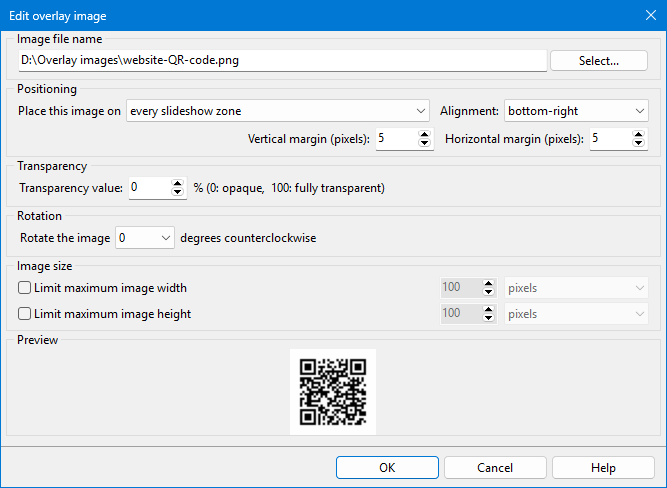
First, select the Overlay image by clicking the [ Select ] button in the [ Image file name ] section. A preview of your Overlay image should appear at the bottom of the window immediately.
Now choose where to place your Overlay image. The [ Place this image on ] drop-down list allows you to select your image positioning. If you select the [ every media file ] option, then your Overlay image will be displayed above every photo in every slide, so be careful if you are showing more than one photo per slide. Other options in this drop-down list allow you to place your Overlay image on every slideshow zone or only on the selected slideshow zones if you are using more than one per monitor. And the last option allows you to place your Overlay image on the monitor background, which is only visible if you add space between the monitor edges and your slideshow zones.
The [ Alignment ] drop-down list allows you to align your Overlay image to any side of the selected placement area (media file, slideshow zone) or to its center. The margins are calculated depending on the selected alignment. For example, if you choose to align your Overlay image to the bottom-right corner of a slideshow zone, then the number of pixels selected in the [ Horizontal margin ] field will be the space between the Overlay image and the right side of the slideshow zone, and the number of pixels selected in the [ Vertical margin ] field will define the space between the bottom of your Overlay image and the bottom of the slideshow zone.
If your Overlay image is too big, it can be automatically resized before it is placed above your photos in the slideshow. Use the [ Limit image width ] and [ Limit image height ] boxes and the corresponding fields to specify the maximum allowed pixels of the Overlay image width or height. You can also select the percentage of the area width or height that can be occupied by the Overlay image. For example, if your photo is 2000 pixels wide, your Overlay image is 1000 pixels wide, you choose to place the Overlay image on every photo, and select 25% of the available width, then the Overlay image will be resized so that its width is equal, or less than 500 pixels (which is 25% of 2000). If you are placing your Overlay image on the slideshow zone, then the available width or height will be calculated using the slideshow zone size, not the photo size.
You can also make your Overlay image semi-transparent using the [ Transparency ] section and rotate it left or right using the [ Rotation ] section.
 Download
Download all images, videos, music or any other files from any website automatically and very fast